Resources For Travel Trainers
Transit has many features that are helpful for Travel Trainers and the clients they serve.
This article will outline a few key app features that will help you on the road!
Plan a trip
Transit can get you anywhere in your city – just tell us where you want to go:
-
On the main screen, tap the search bar.

-
Enter your destination and see all options. You can enter a transit line, stop, or destination address.

-
(If desired, tap the arrows to expand the search and tap in the upper field indicating "Current location" to change your starting point.)

-
Tap a search result.

-
Compare your options using public transport and other modes.

-
Tap a trip to see more details.

Note: Station entrances are only shown in select cities.
For more detailed information, you can look at our Help page here, on How to Plan a Trip
Get step-by-step directions with GO
GO is Transit's personal trip companion. Tap GO to get timely notifications for when it's time to leave, to change lines, and to get off the bus or the train. This is a great feature that can be used to help build confidence in people who are using public transit for the first time, or need some extra assistance to get to their final destination.
GO also anonymously shares your bus or train's location with other users, improving the accuracy of real-time info in your city.

-
To start GO for a specific line, select the line on the main screen and tap GO. To select a specific departure, tap the relevant ETA card.

-
Then, choose your desired destination stop.

-
To start GO for a trip plan, tap GO in the trip details screen — after you've planned a trip and selected what you want to take.

For more information about how to use GO, you can see our Help page here.
Share your GO trip
It's now possible to share your GO trips with other Transit users! Sharing your GO trip allows you to share your live location and routes in realtime.
How to share your GO trip
- Launch a GO trip, then tap the share icon in the top right hand corner.
-
In the prompt, select "Send invite link".
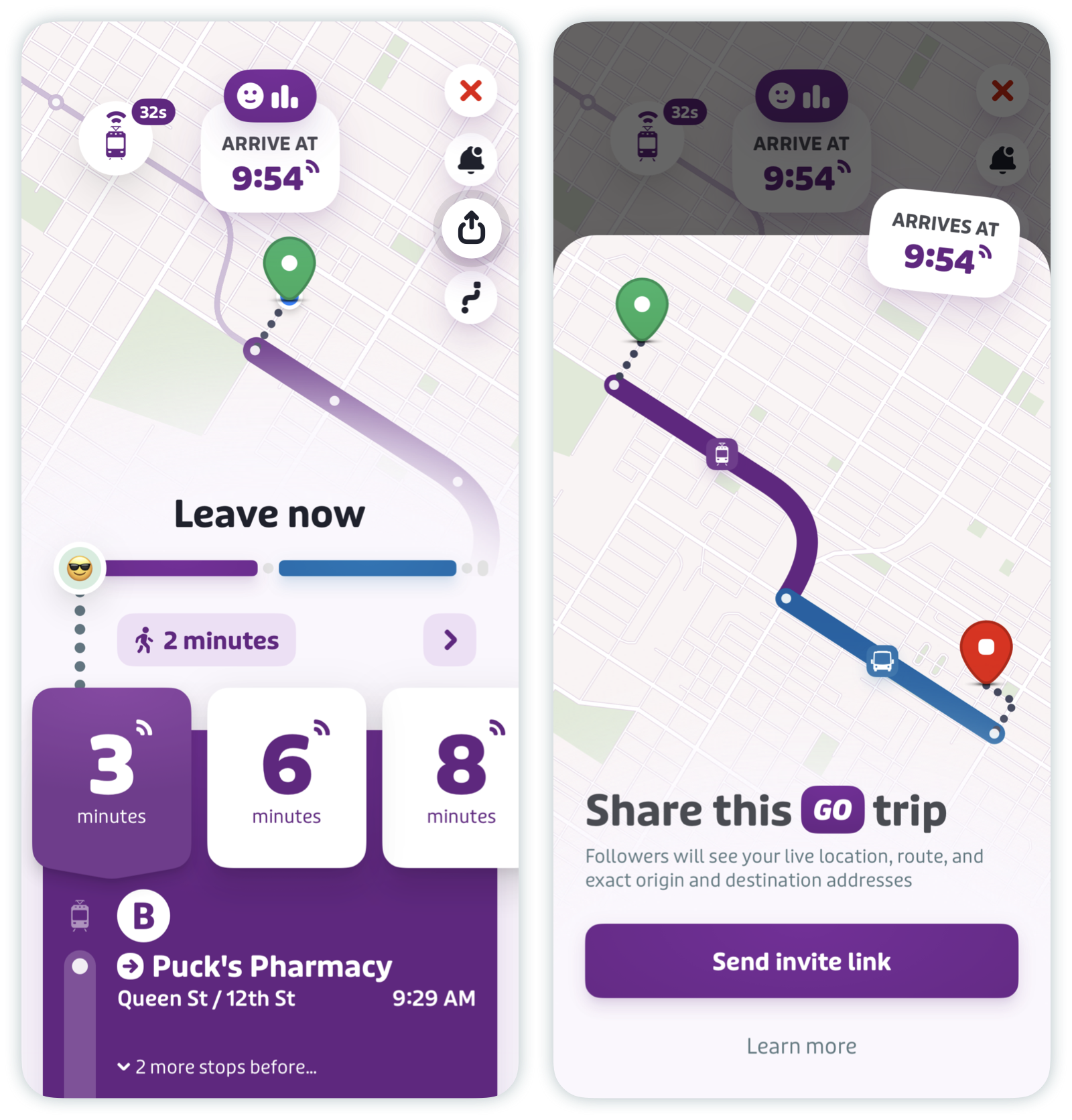
- You'll then have an option to copy the link or share it directly on an application of your choice.
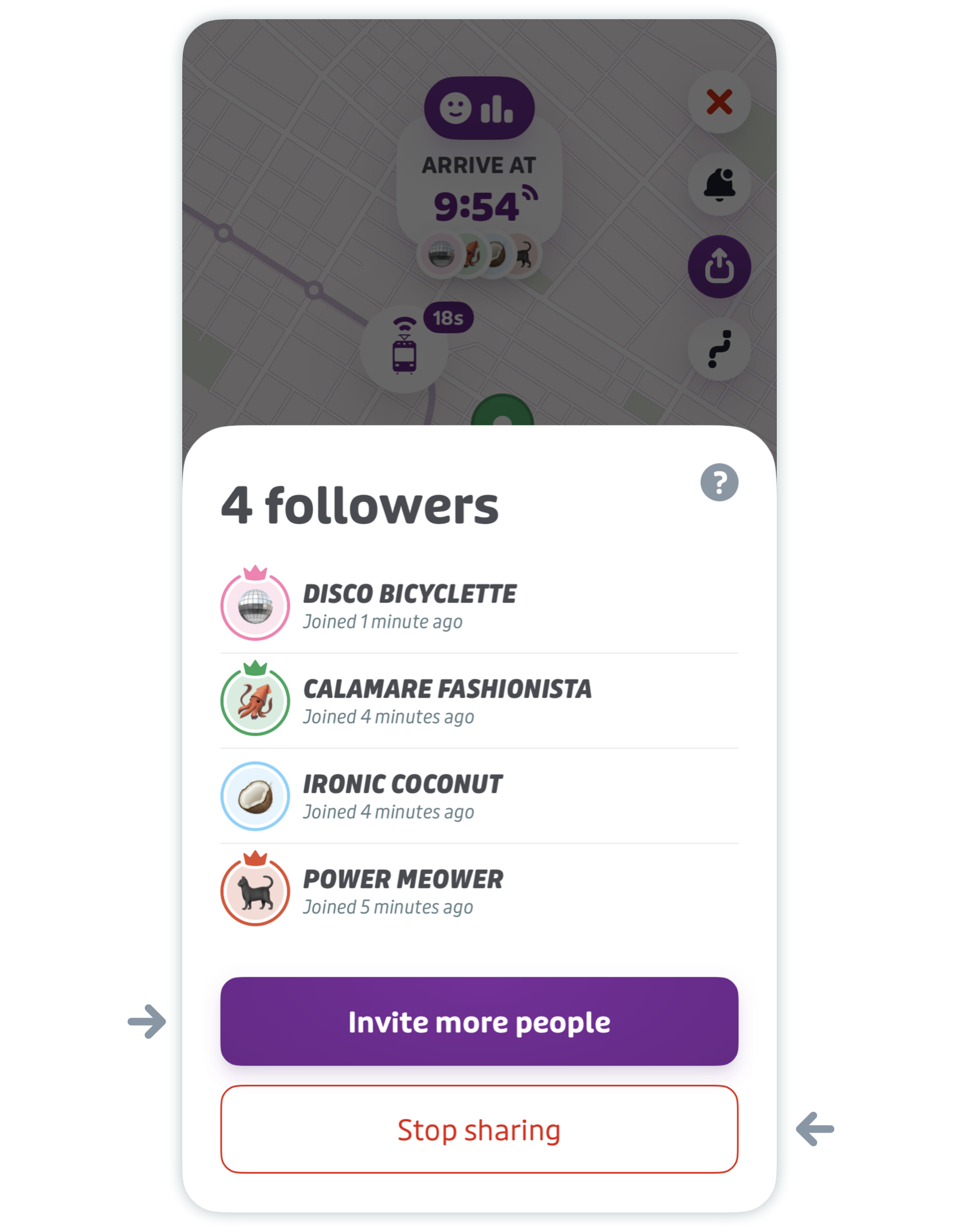
- To share your trip link with more people, tap the share icon again and select "Invite more people".
-
To stop live sharing, tap the share icon again and select "Stop sharing".
What is visible to people following your GO trip?
Once you tap "Send invite link", anyone you share your link with will be able to follow your GO trip in real-time. They'll be able to see your exact origin and destination, your live location, your estimated time of arrival (ETA), as well as each leg of your journey.
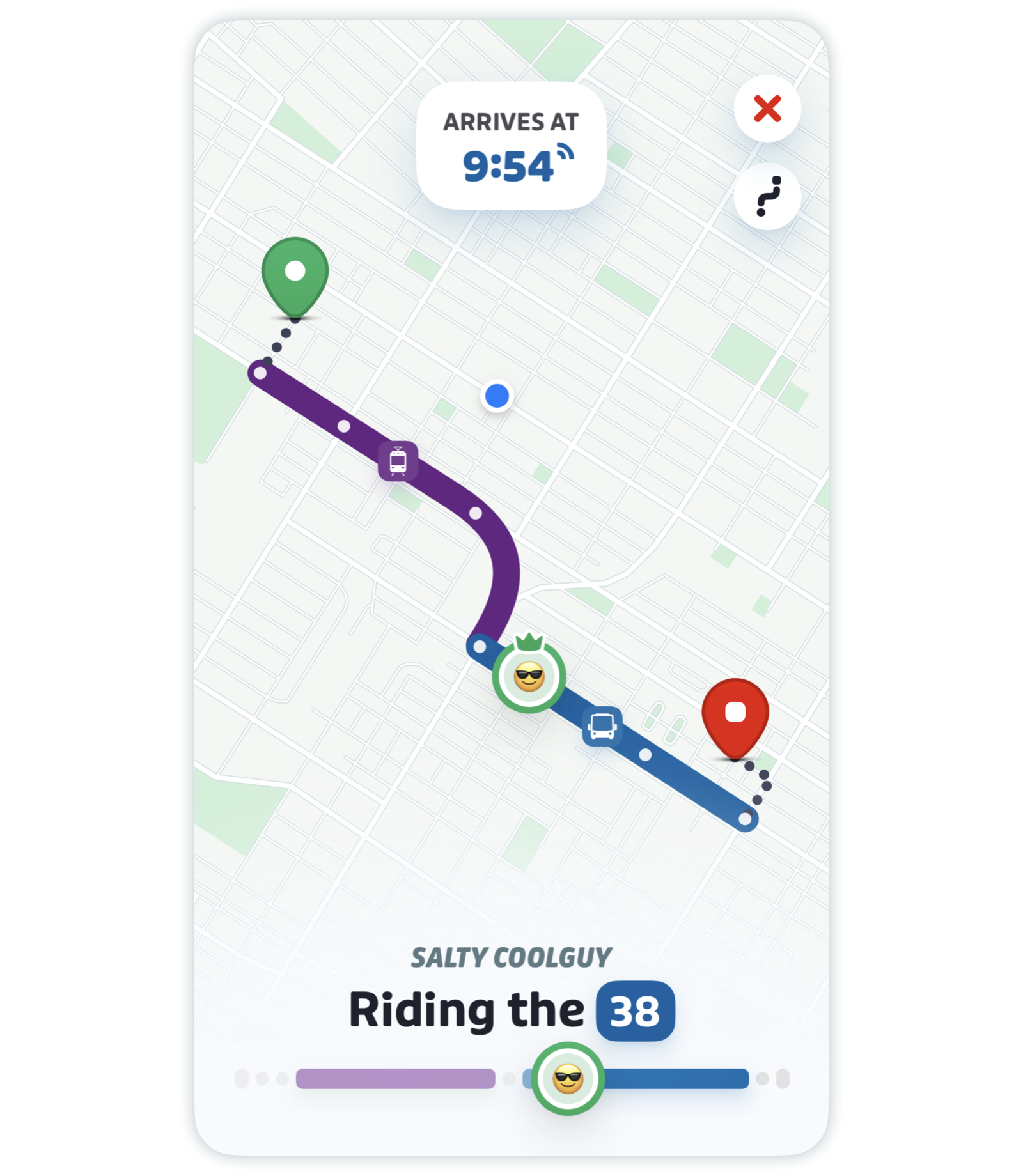
Note: Anyone following your trip (i.e. anyone with access to the link you’ve created) can see your exact origin and destination addresses and your exact location in real-time. Only share this information with people you trust, and exercise caution when sharing this link publicly.
To see who’s following your trip:
-
Once someone joins your party, their avatar will appear at the top of your GO screen (under your estimated arrival time). You can tap their avatar or tap the share button again to see who is following your trip.
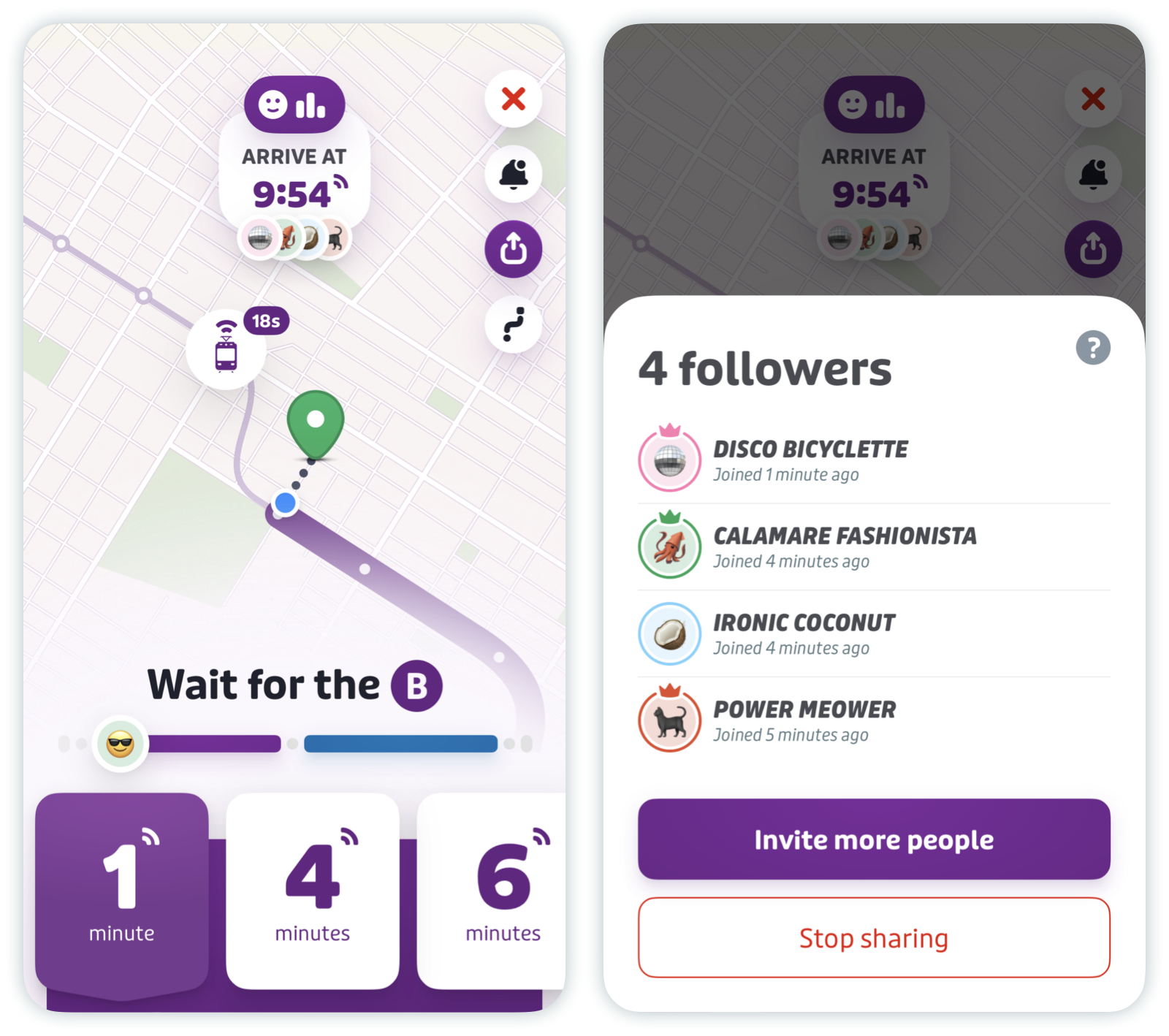
- If you have Transit open in the background, you’ll get a push notification every time a new user joins your trip.
For more detailed information, including privacy information, about sharing your GO trip, please see our Help page here.
Accessibility information in Transit
When accessibility information is available, Transit displays whether vehicles and stops are wheelchair accessible. This can be very helpful for riders with physical accessibility concerns.

Enable accessibility information
-
Tap the gear icon at the top left of the main screen.
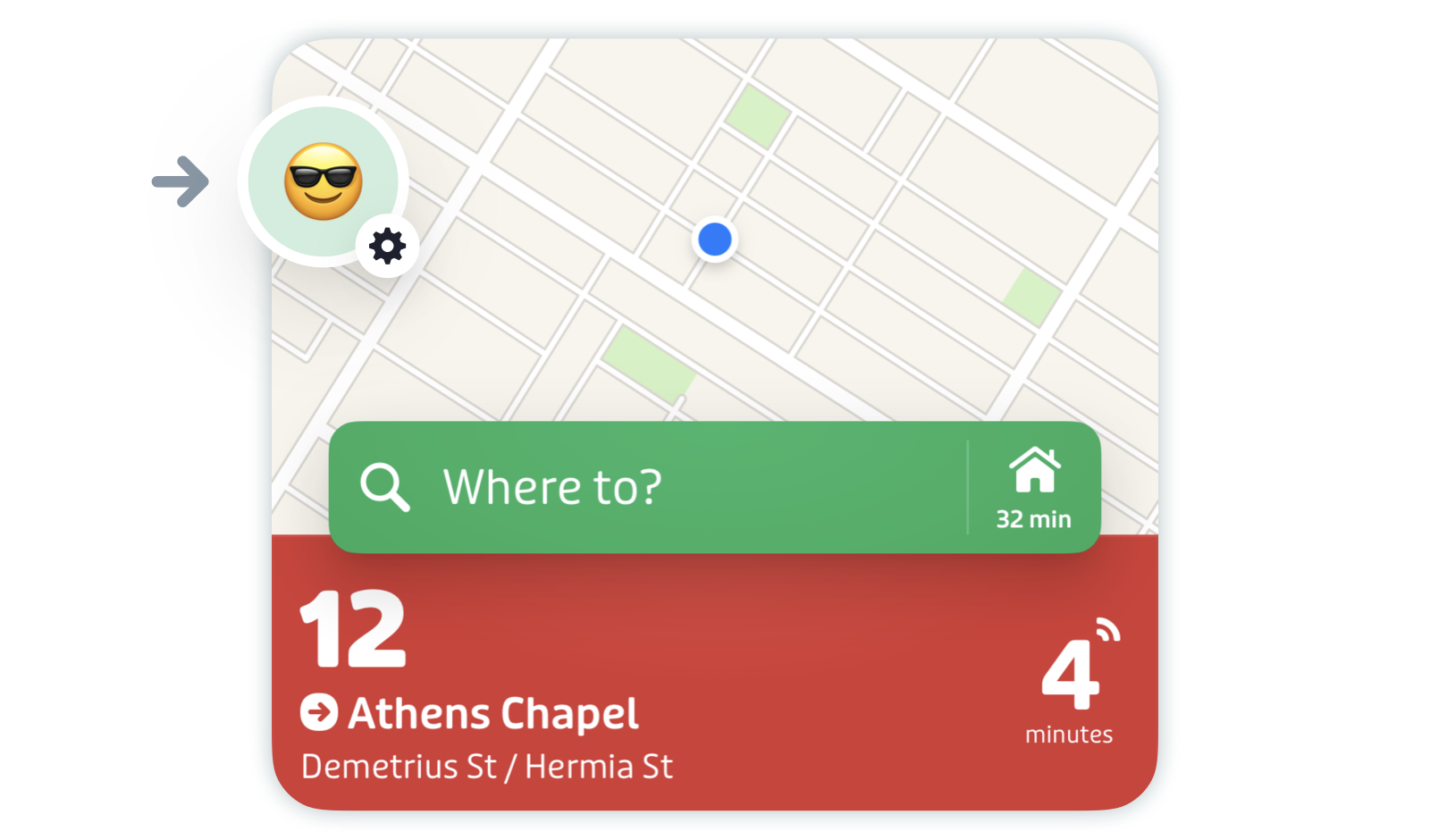
-
Scroll down to "Getting around" and tap "On the sidewalk".
-
Scroll down to "Step-free accessibility" and select "Show accessibility info" to display whether vehicles and stops are wheelchair accessible. To surface results in the trip planner that are exclusively accessible, select "Show accessible trips first".

-
You can also manage this and additional accessibility features by scrolling down to "Preferences" and tapping "Settings and accessibility".

-
Scroll down to "Accessibility". You’ll see additional customization options like "Minimize walking" and "Show line colors".

Identify wheelchair accessible departures and stops
For each route, the main screen displays both whether (A) the vehicle for the next upcoming departure and (B) the closest stop are wheelchair accessible.

Tap on a route for more information. Accessibility icons at the bottom of each ETA card show which upcoming departures are wheelchair accessible. Scroll down the stop list to check which stops along the route are wheelchair accessible.

To check more departures, swipe left through the ETA cards and tap "More departures". The full schedule screen indicates whether the upcoming departures from your selected stop are wheelchair accessible.

Transit is also accessible for VoiceOver and TalkBack. For more information about Accessibility, please see our Help page here.
🚨 Are you a travel trainer using our app? Do you have feedback for us? Contact us directly through the app or at info@transit.app to let us know what you think!